On this page
Test Lab: tell the AI what to test
The Test Lab is where you type an end-to-end test in plain English and a test agent carries it out on the device you picked, while you watch that device live. The Cloud browser needs nothing installed. With the xtest app on a Mac or a PC, the same picker also offers its own browser window and its Android emulators (on an x64 PC as on a Mac), and on a Mac your iPhone simulators as well. Once the device you picked is open, it fills the left of Test Lab; until then the left lists where a test can run. The test agent's panel on the right holds the conversation, with the box you type in at its foot and the device picker inside that box.
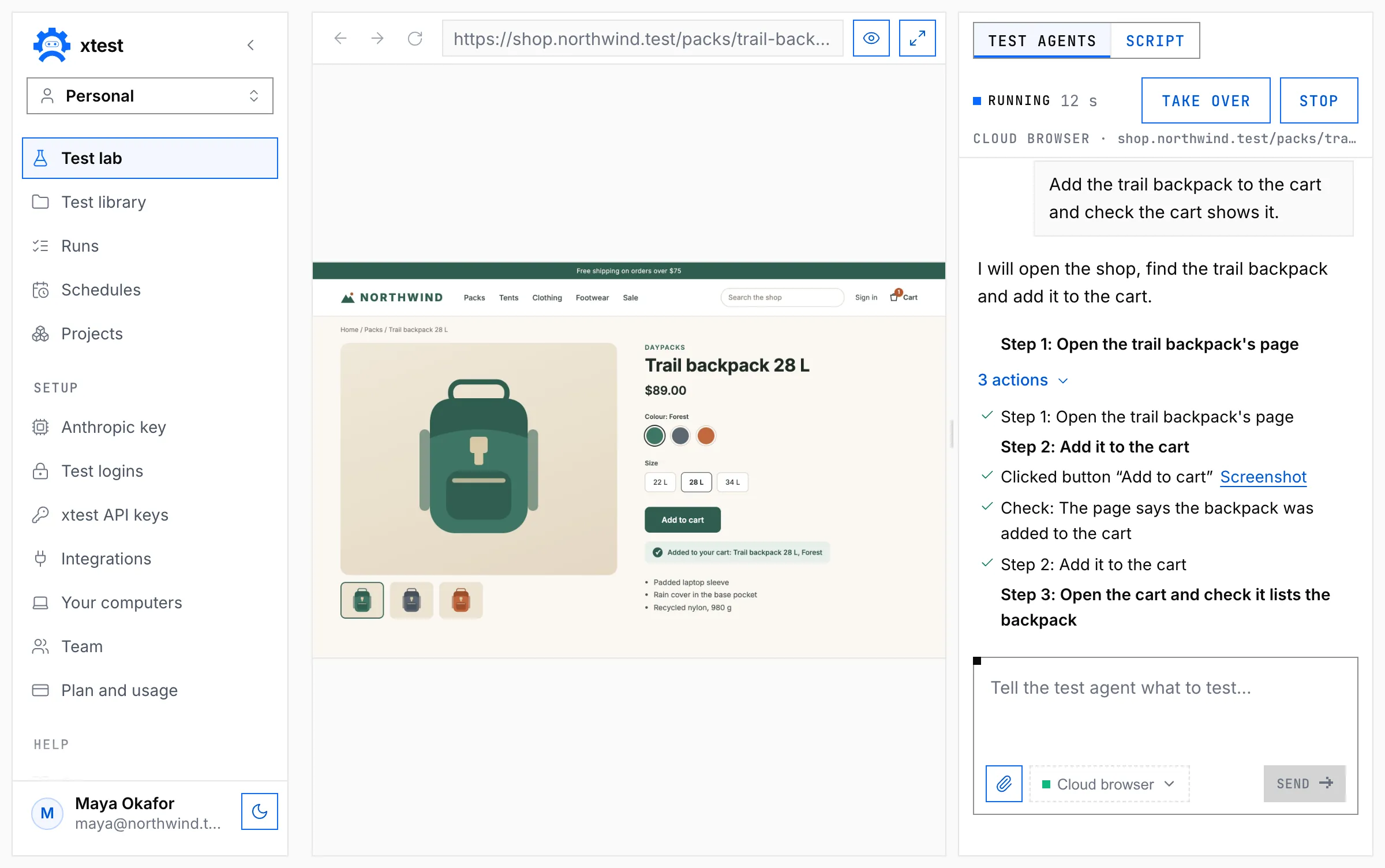
On the left, the page as it is right now. On the right, Running 12 s, Take over and Stop, then every action taken so far, under the step it belongs to.
Give it your files
Attach a spec, a list of steps, test data or a design with the paperclip in the box, by dragging files onto the panel, or by pasting a picture. In the xtest app, a dropped file reaches the panel from version 0.5.19. The test agent reads PDFs up to 40 pages, Word files (.docx, without their pictures), text files (.txt, .md, .csv, .json) and pictures (PNG, JPEG, GIF, WebP), up to 10 MB each and 5 to a message. It works from them for the rest of the conversation on that device, and later, on another of your devices or once that one has closed, it opens one again when the test needs it, while the file is kept. A file goes to Anthropic like your words and is kept with the run for 30 days. A site that only a file names is asked about before the test agent goes there. It cannot put your file into a page’s upload field yet: there it uses xtest’s sample files.
Turn a document into tests
In the Script view, Convert document reads a Word file (.docx), a PDF, a Markdown or a text file of up to 10 MB and writes test cases or a test plan from it. Test cases arrive as one table of steps and expected results for each case, and are saved to the Test library, where they run like any other test. A long document is read up to its first 150,000 characters, about 50 pages, and the result says where it stopped.
One conversation
The test agent’s chat is one conversation. Switch from the Cloud browser to an Android emulator, reload the page or come back after xtest restarts, and the test agent still has what you asked and what it did, on every device. It can look up your workspace’s runs, findings, tests, schedules and notes. An Exploratory test’s run starts from your words alone, with no look-ups. A saved test or a suite you run in the conversation runs as any test run does, without what was asked before and without the look-ups. Come back within 60 minutes, or while its device is still open, and Test Lab opens it again; up to 7 days later, Continue picks it up. New test starts a fresh one. Ask it to test on another device, Android, the iPhone, Chrome, the Cloud browser or one of yours by its name, and it moves the conversation there and starts the test. When your words name no device it suggests one of yours: one press, or a yes, moves there. A device that is not ready yet shows what readies it first. Conversations, at the top of the panel, lists yours: open one to go on in it, or delete it with its runs. In a company, your teammates can read your conversations in Runs and continue one as their own; only you send messages in yours.
Run with a test agent on a Jira ticket’s page or its board card in Projects starts a conversation for that ticket. Name a ticket in a message by its key, such as PROJ-123, and when one of your projects reads its Jira project, the test agent reads it before it tests, from Jira, or from xtest’s copy when the copy read it in the last ten minutes or Jira does not answer, with the results of its tests as the board shows them.
The devices you can pick
Cloud browser
A Chromium on our servers. Nothing to install, and it is the only device the REST API can run on. It cannot reach localhost or a private address; use your own computer for those.
Chrome on your computer
On a Mac or a PC, the xtest app opens its own browser window, separate from your everyday one: its own Chrome for Testing, separate from yours; your Chrome or Edge stands in until it is downloaded. Sign in to your sites there once and it stays signed in between runs.
iPhone simulator
Any simulator Xcode has, listed by name and iOS version. When Xcode has none, Set up downloads Apple’s iPhone simulator. Apple only ships that tooling for macOS, so this one needs a Mac. The AI taps and types on it and you watch the same picture it sees.
Android emulator
Any AVD already on the machine, listed by name and Android version. On a Mac the AI can drive one, and on an x64 PC from xtest app 0.5.33; an ARM PC has none.
AI control on Windows arrived in xtest app 0.5. A PC still on 0.4.x is listed in the picker but offers nothing on it: the row says which version it needs and opens the steps to update, and the Cloud browser is there meanwhile. An Android phone plugged in by USB is listed once the app finds Android's platform-tools, the ones its Android setup brings or your own in Android Studio's SDK folder, and the AI cannot drive it yet.An iPhone on a cable is not listed at all: xtest works with iPhone simulators on a Mac, not with handsets. There are no real handsets in a rack anywhere, and no device is shared with anyone else.
While it runs
The picture is the device as it is now, not a recording. Take over hands you the mouse and keyboard mid-run, Give back returns them, and Stop ends the run there. Three AI runs may be going at once; a fourth is refused rather than queued.
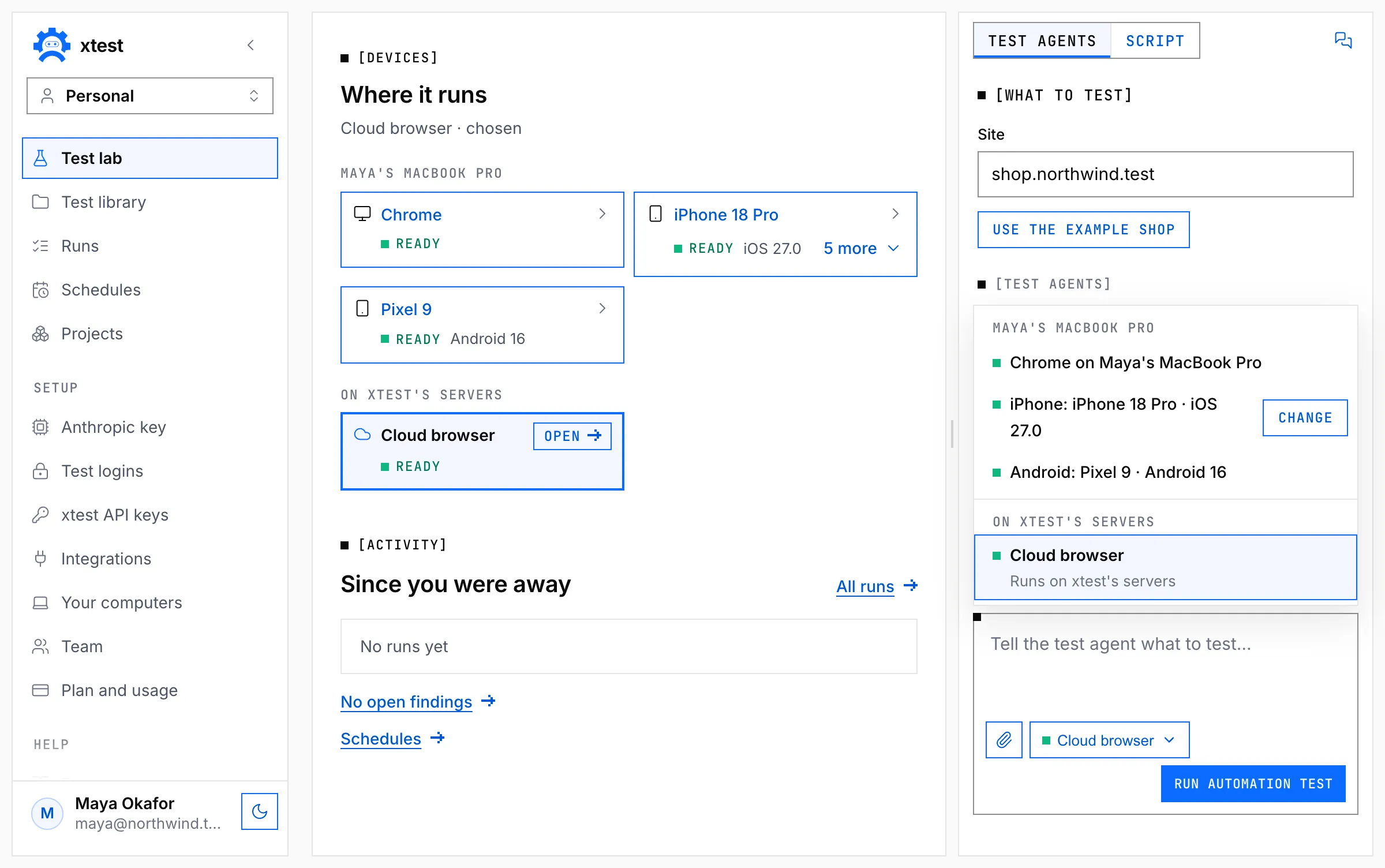
A computer with the xtest app contributes its browser window and its Android emulators, and a Mac its iPhone simulators too. The Cloud browser sits underneath, on our servers.
What it will not do on its own
With "Ask before paying, deleting, sending" on, the server pauses and asks you before the test agent presses a button named like Pay, Delete or Send, on the run itself rather than in an email. xtest fills in a saved site login without telling the AI its username, password or one-time code. The username then stays readable on the page, like any text typed there, and on a phone the one-time code can show in a screenshot while it is on screen. Every secret in play is replaced with dots before a step is stored or streamed, so a password cannot appear in a transcript, an event or a saved step.
Afterwards
The run lands in Runs with its steps, what the AI concluded and what it cost, and the screenshots the test agent took are kept with it for 30 days. Save the steps to a suite and the next run replays them for no AI cost, with the AI stepping back in only where a step needs it: one that no longer works, or one that types a value read off the screen.
Bug bash
A bug bash is several explorations of one site or app, each a run of the Exploratory test agent with an area in your words, or the whole site or app, and one of six postures, such as a skeptic who checks every total. Set one up from Test Lab's start card while Exploratory test is chosen, or from the menu of a test that has a site address or a saved app. It has 1 to 10 explorations, each exploring for up to 10 minutes, and you have one bug bash going at a time.
Each device you tick runs one exploration at a time, in a device session of its own. Explorations run side by side only when the test's environment has a seed that answers each run with a login of its own, so each signs in as its own account; otherwise, or once two explorations get the same login, they run one at a time. When a seed answers a second exploration with the login of one already going, that second seed has already run, so a seed that resets the account resets it under the first. The second exploration then waits, and starts again later with a seed of its own; its first clean-up goes once the first exploration has ended. An exploration's clean-up that has to wait for its computer goes between explorations, never under one that is going. Verify on a finding of this test is turned down until the bug bash ends, since a verify run's seed or clean-up could change the account an exploration is on. Every other run of this test is held too while it runs, when the test's environment has a seed or a clean-up: a schedule's run waits for it to end, up to an hour late on a computer or six hours on the Cloud browser, and a run started in xtest, with an API key or over MCP is refused with 409 and BUG_BASH_EXPLORING. A run of this test already going when the bug bash starts holds its explorations until that run has ended, and so does the rest of it that xtest starts by itself: the explorations wait for that rest for a few minutes after the run ends, or up to an hour after a deploy of xtest cut it. The bug bash stops if none can start within 30 minutes. A clean-up a run of this test still owes for its computer goes between explorations too, never under one that is going. A device can still start an exploration signed in as someone else. On Chrome on your computer, an exploration starts signed in as whoever signed in there last, you or an earlier exploration, since Chrome keeps its sign-ins. On a phone, the app keeps whatever an earlier exploration on the same device left in it, its sign-in included, unless the test's app setup starts the app fresh. A bug bash never takes more than two of your three AI runs, so one stays free for you. It starts no new AI request once it has used the most AI its explorations may use, in dollars on your own Anthropic key or as a share of the month's included AI on xtest's, and requests already going finish, so it can end a little over.
The Cloud browser takes one exploration at a time from each person, so there they run one after another. Meanwhile any other run your API key starts on the Cloud browser is refused with 409 and DEVICE_BUSY: unlike a verify run, an exploration never makes way. For 10 minutes after that refusal the bug bash starts no exploration there, so a start that asks again once the exploration has ended gets the Cloud browser first.
Reports of one defect on the same page, or for an app on the same screen reached the same way, in the same words, small words such as "the" and "is" aside, become one finding that keeps what each exploration saw. Its findings wait while it is going. Once every exploration has ended, xtest releases 10 of them a day to be verified, the most serious first, and at once any it does not verify by itself. A web finding is then verified on the Cloud browser by itself when the Cloud browser can open the site and reach any test API the test calls; one found on a phone, or on a site or test API only your computer reaches, waits for you to press Verify, and with "Verify findings automatically" off in your workspace, every one does.