On this page
Mobile testing
xtest tests phones through the simulators and emulators already on your own computer, reached by the xtest app. There are no handsets in a rack anywhere. On a Mac, the AI drives an iPhone simulator or an Android emulator while you watch the same screen it sees; you install your build on one from the app window, and you say what state the app should be in before the test starts.
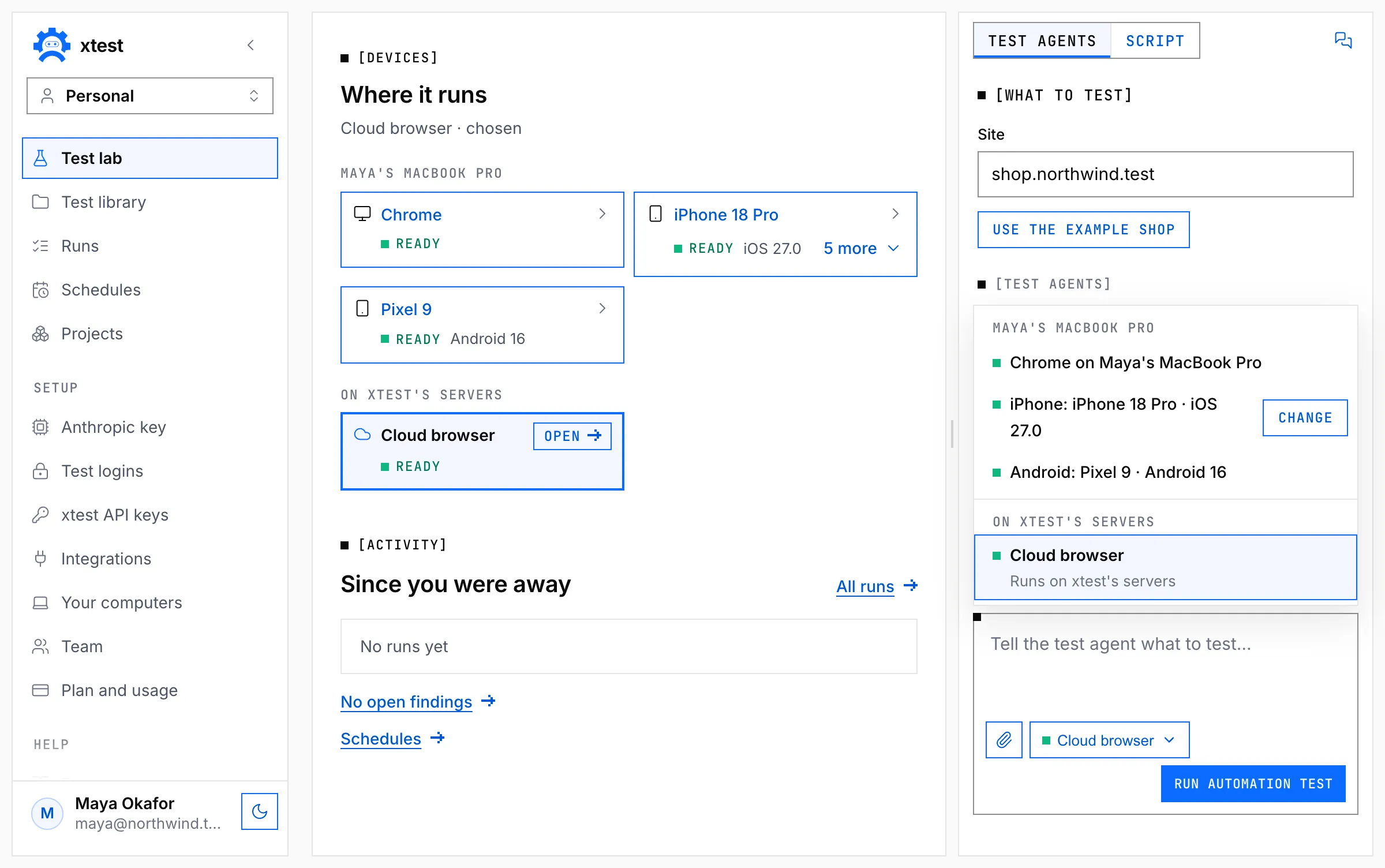
A Mac with the xtest app contributes its iPhone simulators and its Android emulators to the picker, each with the version it runs.
The devices xtest lists
The app scans the computer it is on and reports what is really there. Nothing is invented, and a device that cannot be used is shown with the reason rather than hidden.
iPhone and iPad simulators
Every available simulator Xcode has on that Mac, by name and iOS version, with anything already open first and iPhones ahead of iPads. Only iOS runtimes are read, so a watch or a TV simulator is never offered. Apple ships that tooling for macOS alone, so this half of the list is empty on a PC.
Android emulators
Every virtual phone defined for the Android SDK on that computer, read from its own config file, by name and Android version. One that is already open is shown as one entry marked open, not as a second unnamed device.
An Android phone on a cable
Found through Android's platform-tools, the ones the app's Android setup brings or your own in Android Studio's SDK folder, and listed with its model and Android version so you can see xtest found it. While it is still waiting on its "Allow USB debugging" prompt the row says "Unlock it and tap Allow", and a cable that has gone quiet says "Not responding. Unplug it and plug it in again".
An iPhone on a cable
Not listed. Only simulators are ever offered on the iOS side, so a cabled iPhone never appears in the picker and no run can be aimed at one.
What needs a Mac
Simulators are Apple's tooling, so an iPhone or an iPad simulator needs a Mac with Xcode. Google's Android emulator needs macOS 12 or later on a Mac, while the xtest app itself runs from macOS 11. An x64 PC runs the xtest phone for test agents as well as saved scripts, from xtest app 0.5.33. An older app on an x64 PC is told which version to get, and until then asking for its phone is refused with "Test agents can't use a PC's virtual Android phone yet." An ARM PC gets no Android emulator, since Google makes none for one; a phone on a cable runs saved scripts there once Google's platform-tools are unzipped into %LOCALAPPDATA%\Android\Sdk, where the app looks.
The browser half does work on Windows, from xtest app 0.5. Below that version a Windows computer is listed but offers nothing on it, because those builds shipped before any of it worked; the row says which version it needs and opens the steps to update.
Getting your build onto a device
Open the xtest app on the computer holding the device. Under This computer, the simulator and emulator rows have an "Install app…" button for each device that is already open, and the file is chosen in a file dialog on that computer: a path never arrives from a web page or from the dashboard, so nothing remote can name a file to read on your machine.
You can install on an Android phone on a cable too. The app goes on the phone and you can open it by hand, but no run will drive it there: test agents do not take a phone plugged in by USB.
Which build files work on Android
.apk
Installed. This is the only file Android takes.
.aab
Refused: a bundle for the Play Store, which no phone installs directly. Build a .apk instead (./gradlew assembleDebug is the quick way), or turn the bundle into installable files with bundletool.
.zip
Refused: unzip it and choose the .apk inside.
.ipa, .xcarchive
Refused: that is an iPhone app, and Android needs a .apk.
.app
Refused: a .app is an app for a Mac or an iPhone simulator.
Which build files work on an iPhone simulator
.app
Installed, when the bundle says it was built for the simulator. Xcode writes that into Info.plist as CFBundleSupportedPlatforms, and a bundle that says iPhoneOS is refused before the install rather than installed and then unable to open. A bundle that says neither is handed to the simulator as before.
.ipa or .zip
Installed only when it is laid out the way an .ipa is, with the bundle inside a Payload folder. The zip Finder's Compress makes puts the .app at the top instead, and is refused with "Choose the .app folder itself". A zip with no app inside says so.
a build for a real iPhone
Refused. An archive holding embedded.mobileprovision is a device build, and a provisioning profile is a real phone's business, so its presence is the certain way to tell it from a simulator build. Build again with an iPhone simulator as the destination.
.xcarchive
Refused: an .xcarchive is where Xcode keeps a build for a real iPhone. Build again for a simulator and choose the .app that build makes.
.apk, .aab
Refused: that is an Android app.
Every one of these is decided from the file before the device is asked, because the device's own refusals are written for whoever built it: a simulator answers the obvious kind of zip with "Missing bundle ID", which tells nobody what to do next.
When Android refuses an .apk
Android answers a failed install with a constant and nothing else. Each one is turned into the cause it actually reported, and never into a guess: a file that would not parse is not evidence that it is unsigned.
No matching processor
The build has no version for this device's processor. The device is asked which processor it has, and the answer is named in the sentence.
A different signing key
A copy is already there, signed with another key. Uninstall it on the device first.
Not signed
Android will not install an unsigned app. Use a debug build, or sign this one.
Older than what is installed
The copy on the device is newer. Uninstall it there first.
A permission another app claims
Another app on the device already claims a permission this one declares.
No room, or too old an Android
The device has no space, or the app needs a newer Android than it runs.
What state your app is in when the test starts
Installing an app is not the same as the app being ready. A freshly installed app meets a permission sheet, an onboarding carousel, no data and a signed-out screen; the second run meets whatever the first one left behind. Neither is a starting state anybody chose, so "Before the test on {device}" in the Run with a test agent dialog lets you choose one, and the choice is saved with the app on the suite so later runs repeat it.
Keep the app as it is
The default, and what happened before any of this existed. Nothing is cleared, nothing is granted, nothing is sent to the computer.
Start the app fresh
On Android this clears the app: its files, its databases, its preferences, the accounts it registered and its granted permissions, which is why permissions are answered afterwards and never before. On an iPhone simulator the app is stopped, its own data container is emptied and its permission answers are put back to unasked.
Answer these before the app opens
Camera, microphone, photos, location, contacts, calendar and notifications. Only a permission the app itself asks for can be answered in advance, and the run records every one that was skipped, with the reason.
Open the app at
A link of the app's own, such as acme://orders/1, or an https address, so a test starts where it means to instead of walking the onboarding again. A web address only reaches your app when your app claims it; otherwise the browser gets it. Anything that is not somewhere an app can be opened is refused before the device is asked.
What each platform will not promise is said before the run rather than discovered during it:
iOS notifications
A simulator cannot be told about notifications ahead of time. Bluetooth, the local network, tracking, speech recognition and Health are refused by the same tool, so the test agent meets those sheets itself.
The iOS keychain
Fresh empties the app's own files. The simulator keychain belongs to the whole device and there is no way to clear one app's, so an app that keeps its sign-in there is still signed in.
Android notifications
Can be allowed on Android 13 and later. Below that the app never asks.
Your own phone
None of this happens on a phone plugged in by USB. Clearing an app's data and answering its permission questions are changes to somebody's own phone that no test result is worth, and the computer refuses again at the moment it would act.
What was actually done comes back as one sentence, and the run keeps it. The test agent is told the same thing, so it knows which screen to expect.
What the AI can do on a phone
The tool list is fixed, and shorter than the browser's. There is no shell and no code execution; the AI works the phone the way a person would.
Look
mobile_read_screen reads the screen as a tree of elements, each with a reference such as [ref_3] and its frame; "interactive" keeps only what you can use, and it will attach the screen image as well.
Act
mobile_tap (count 2 double taps), mobile_long_press, mobile_type (submit presses Return afterwards), mobile_press for Home, Back or Enter.
Scroll
mobile_scroll_until scrolls a long list up, down, left or right until a row with the words it is given shows, then reads that screen. It is saved as one action, and a replay scrolls the same way until the row shows, so a list that has grown by a row does not break it. It needs the xtest app 0.5.8 or later.
Move
mobile_launch_app opens an app by bundle id or package, and with fresh closes it first and opens it again, which is saved and replayed as a restart. mobile_open_url opens a web address, mobile_list_apps lists what is installed including the built-in apps.
Conditions
mobile_rotate turns the phone to portrait or landscape, mobile_background_app sends the app to the background for 1 to 30 seconds and brings it back while it still runs, mobile_set_permission grants, denies or resets one permission of the app under test, mobile_set_appearance switches between light and dark, mobile_set_text_size sets the text size from the smallest to the largest, and mobile_pinch pinches to zoom in or out. On an iPhone simulator, mobile_set_location sets where the phone says it is, mobile_push_notification sends the app a notification and mobile_biometric answers Face ID or Touch ID.
Prove
check, with the six kinds a phone can answer: text_visible, text_absent, element_visible, element_hidden, element_value and element_checked.
Alongside those, the general computer tools work the screen itself. The members a phone has no word for are turned off before the run starts rather than refused during it: right click, middle click, triple click, moving a pointer, holding a key down and zoom.
Testing a site you are running on your own computer works from an Android emulator: a localhost address is forwarded to your computer, so the address stays exactly as you wrote it and the saved step is still portable. Only when that cannot be set up is the address rewritten to 10.0.2.2, and the run says so rather than quietly opening something else.
Changing the phone's conditions
Many phone bugs live in the conditions around the app: the screen turned, a permission denied, the largest text size, the app sent away and back. From xtest app 0.5.12, the test agent changes these partway through a test, on Android emulators and iPhone simulators. Each change is saved as an action in the order it was made, and a replay makes it again at the same point.
Put back after every test
Before a change that stays (a rotation, a permission, the appearance, the text size, the location, a Face ID enrolment), the xtest app writes down what it was. At the end of every test it puts each one back, newest first, and only where the phone still shows what xtest set. An iPhone simulator cannot say where it is or what its location permission is, so there the location is cleared, and that permission goes back to what was answered before the app opened or else to not asked yet, without looking first. Anything it could not put back then is tried again when the session closes, when the app next starts and when it next connects. While a setting stays changed, the run's later tests on that phone are not run, each saying why, and the test that changed it says what it changed. An iPhone simulator's rotation is the exception: only a test session can turn that screen, so it goes back when the next test session opens on that simulator.
A permission closes the app
Any permission change on an iPhone closes the app, and so does taking one away on Android. The test agent is told and opens it again, and the saved steps do the same. On an iPhone simulator a permission Xcode has no switch for, notifications among them, is refused in a sentence.
iPhone simulators only
Setting the location, sending the app a notification and answering Face ID or Touch ID. On an Android emulator the test agent is told it cannot, and carries on without it.
Links into the app
A link with a scheme the app under test declares, such as acme://orders/1, opens in that app. A link that would call, send a message or an email, hand over to another app or read a file (tel, sms, mailto, intent, file, data, javascript, blob, about and chrome) is never opened. The timeline and a test's saved steps in the Library show a link without its query or fragment; the saved step keeps the whole link, so it replays. A finding's steps to reproduce, which its bug report and its Jira bug carry, keep the whole link, masked as every address a finding holds is, so whoever follows them opens the screen it was found on.
An older xtest app
The test agent is told which version it needs, and carries on without it. A saved test with such a step replays the steps before it and stops there, blocked, saying to update the app.
Your own phone
None of this happens on a phone plugged in by USB, or on a real iPhone.
What it cannot do
Phones on a cable
An Android phone plugged in by USB is listed so you can find it once the app finds Android's platform-tools, the ones its Android setup brings or your own in Android Studio's SDK folder, and marked unsupported: "AI control of phones plugged in by USB comes later." A saved script still runs on it, in its own Chrome, from "Run the saved script on my computer" on a test's page, with the xtest app 0.5.16 or later: Chrome keeps its tabs, history, cookies and sign-ins, and what starting Chrome changes is put back when the run ends. An older app cleared Chrome's data there, so it is sent no run on a phone. If the xtest app quits during a run, from 0.5.17 it puts back what starting Chrome changed as it quits, or if it cannot, the next time it starts or connects with the phone plugged in, and the next run on the phone says so; with an app before 0.5.17, the run's record says what may be left and where on the phone to turn it back.
URL and title checks
A phone has no address bar and no page title, so those two checks are not offered on a phone. The other six are.
An iPhone plan on an iPad
Saved steps are kept per platform and per shape of screen, so there are separate plans for an iPhone, an iPad, an Android phone and an Android tablet. An iPhone plan never replays on an iPad, because the screens are different shapes and the steps would land on the wrong things.
Android permission questions
From xtest app 0.5.37, a saved tap on Android's own permission question is made only when the question shows. An app that has its answer already does not ask, and the replay goes on.
iPhone permission questions
From xtest app 0.5.41, a saved tap on a question iOS or Safari asks, such as a site asking for the microphone, is made only when it shows. A question the saved steps do not answer is answered Allow, and the step's line says so.
Two runs on one device
A device already busy with an AI run is marked busy rather than offered, and its row names the run holding it, so you can stop that one or pick another device. A device claimed by a saved-step run is refused by the computer itself when the run tries to open it, because only the computer knows that in time.
[Academy courses]